Sign in to the console
Signing in starts with your email. The console then offers the ways in this deployment has for it. Which ones it has is up to whoever runs it: Turn on sign-in.
Your email first
Section titled “Your email first”Enter your work email and Continue. The page then lists, under Choose how to sign in:
- Sign in with your workspace's own identity provider, first, when your email's domain is set up for it;
- Continue with Google or Continue with Microsoft, by who hosts your domain's mail (both when that can't be told);
- Continue with GitHub, when the deployment has a GitHub app;
- Email me a sign-in link, when the deployment sends them.
When your workspace has its own identity provider, it's the way in for your
domain, with Google or Microsoft for accounts your company manages. GitHub and
the emailed link aren't offered there. For pat@acme-live.example, whose
workspace signs in with "Acme Live":
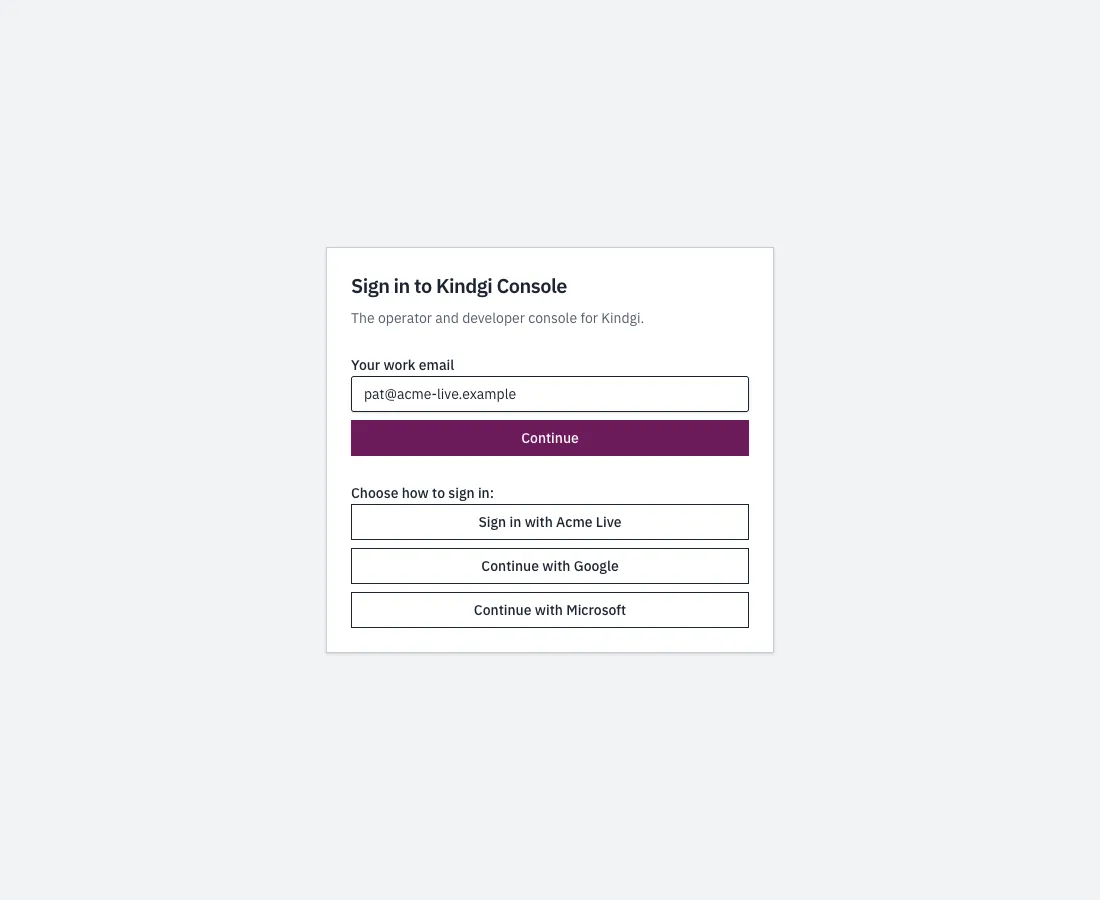
For a Gmail address, Google and GitHub:
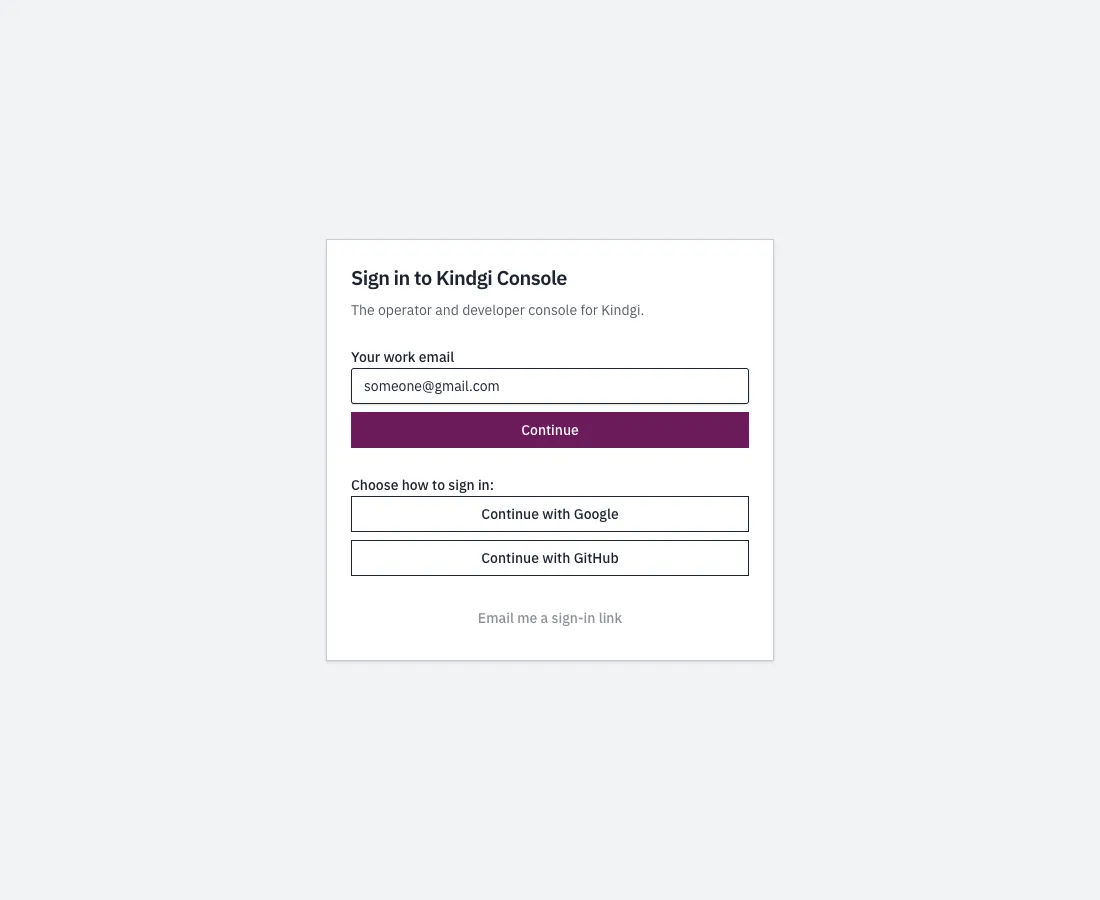
The buttons only point the way. Whichever you choose, you're let in only if someone has already added you to a workspace, with the email your provider confirms. If you're in several workspaces, the page asks you to Choose a workspace: (the choice lasts five minutes).
A sign-in link by email
Section titled “A sign-in link by email”Email me a sign-in link sends a link to your address. The page answers the same for any email:
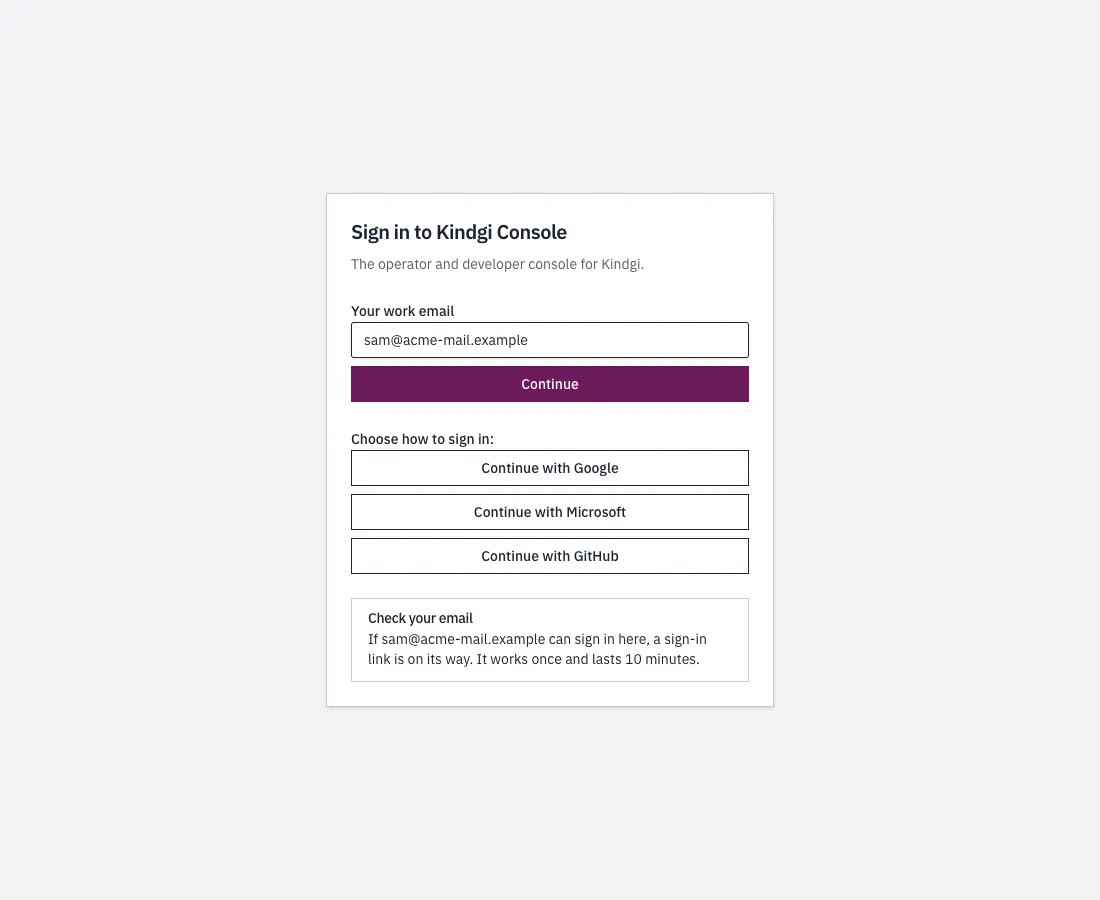
The link opens a page that says which email it signs you in as. Nothing happens until you choose Continue as your email: mail scanners open links too, and this keeps them from using yours.
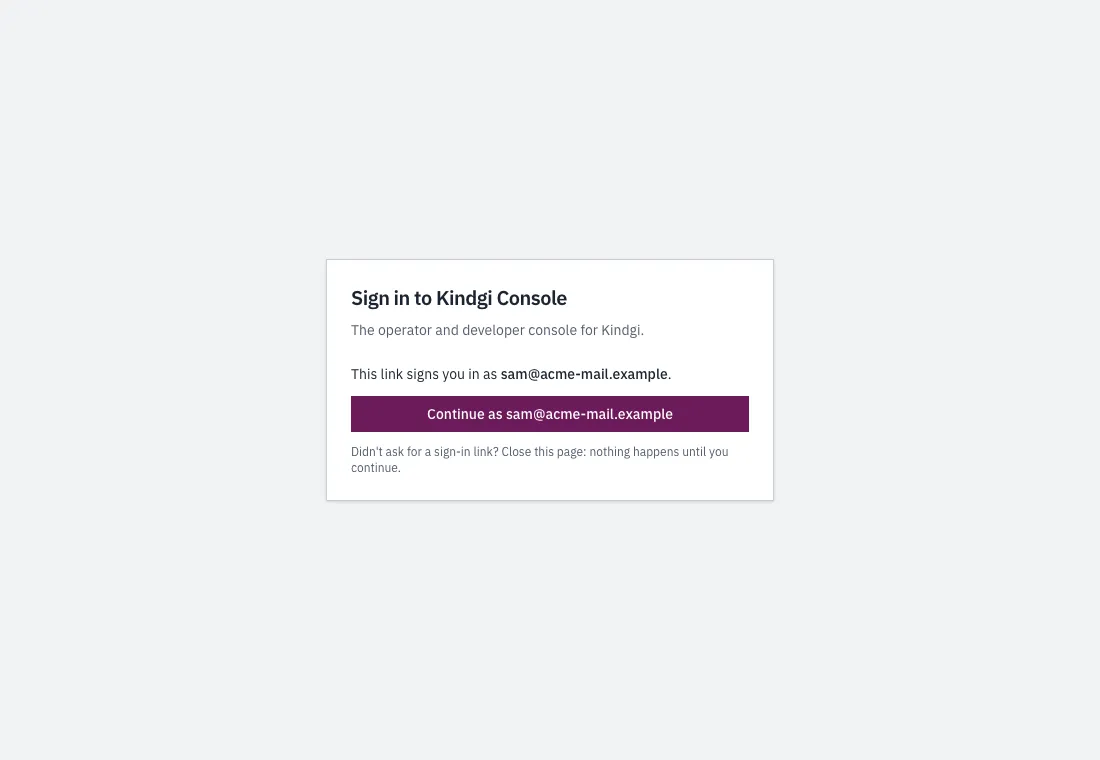
The link works once, for ten minutes. After that:
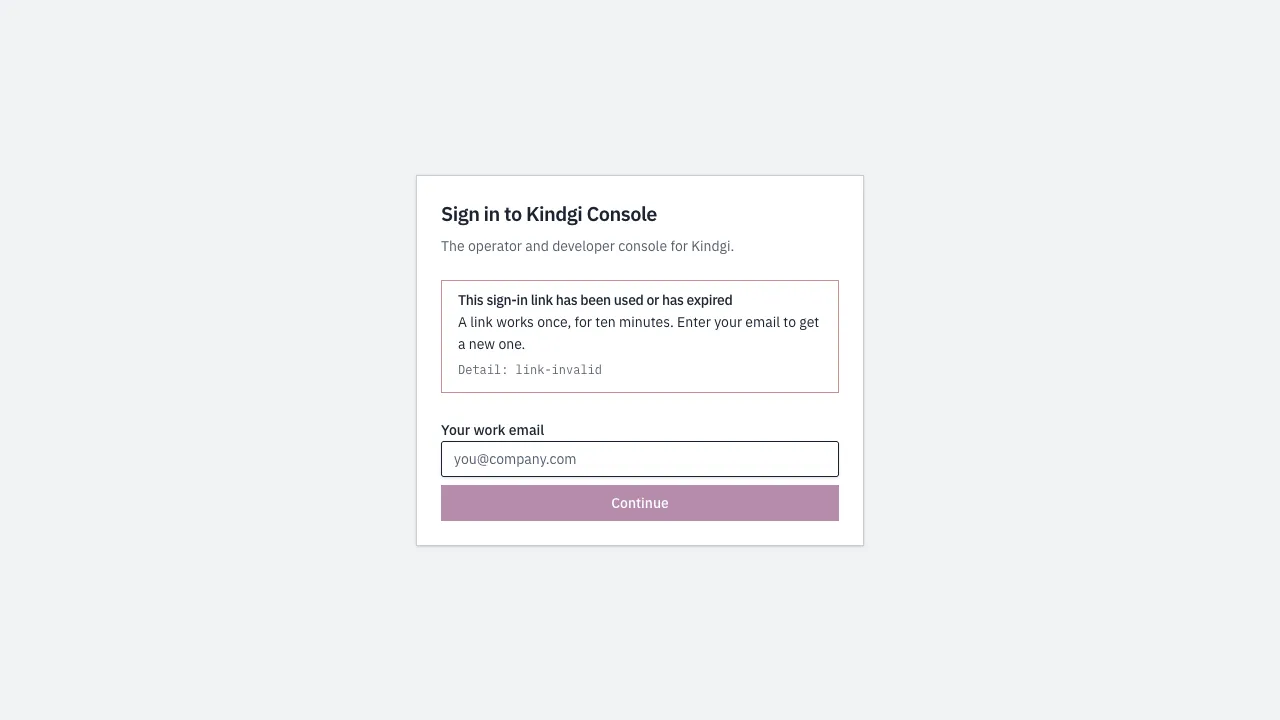
When sign-in doesn't let you in
Section titled “When sign-in doesn't let you in”| The page says | What it means |
|---|---|
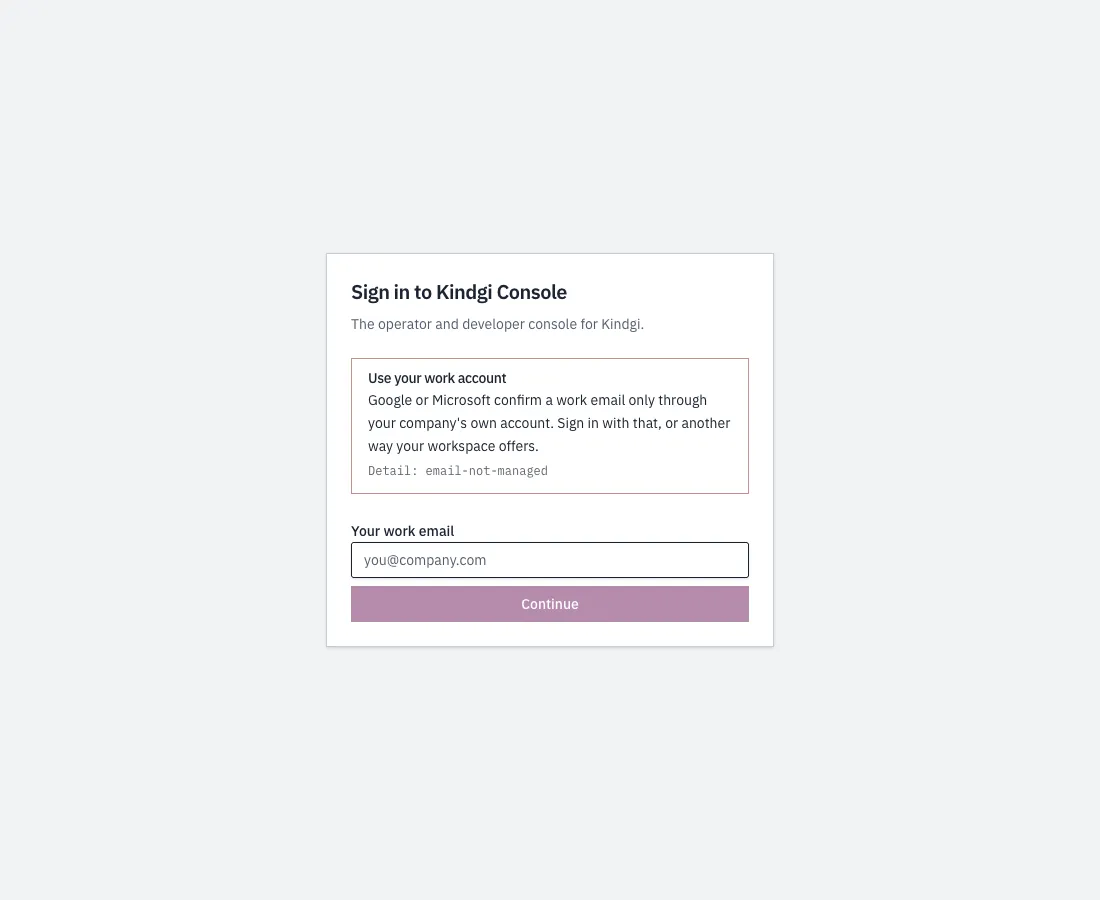
| Use your work account | Google or Microsoft confirm a work email only through your company's own account. Sign in with that, or another way your workspace offers. |
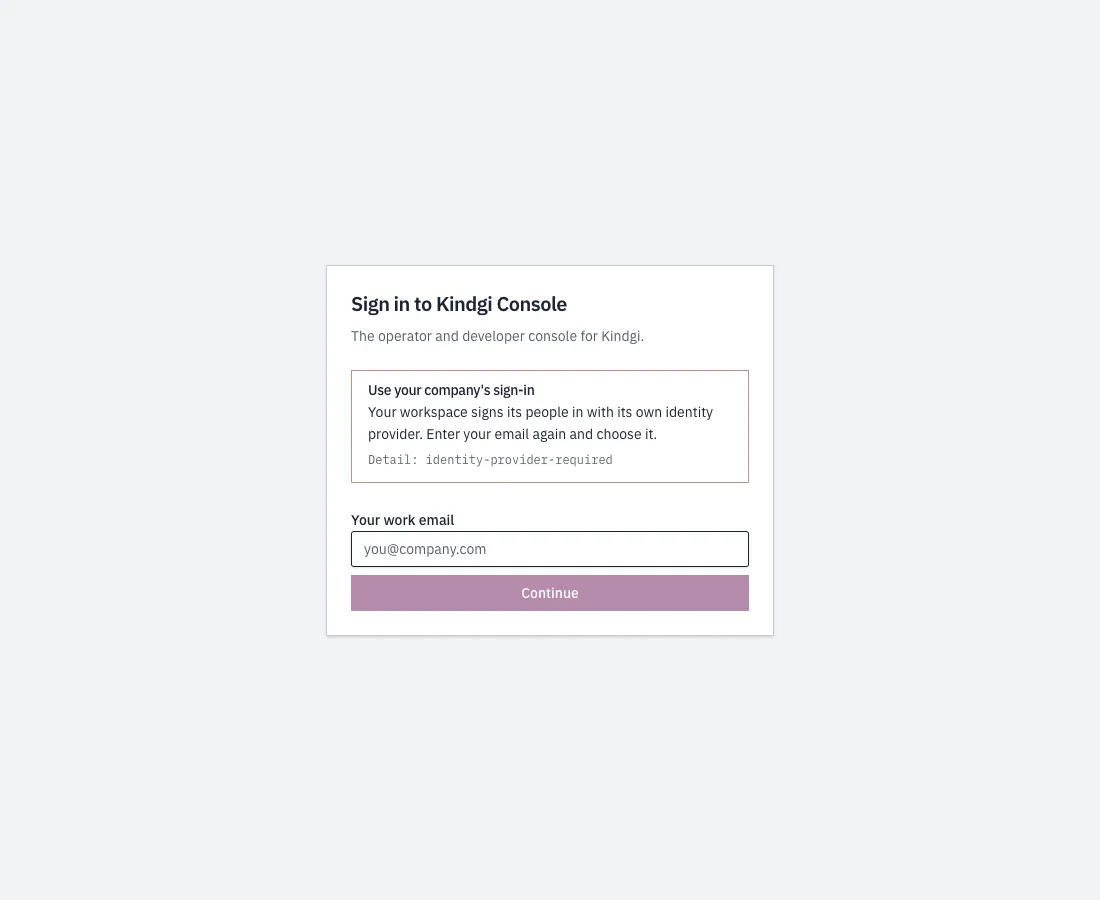
| Use your company's sign-in | Your workspace signs its people in with its own identity provider. Enter your email again and choose it. |
| You haven't been added here yet | Your sign-in worked, but nobody has added you to this workspace with this email. Ask an admin. |
| Your email isn't verified | Your identity provider says your email isn't verified. Verify it there. |
| No email came back | Your identity provider didn't send your email address. Your admin sets it to send the email claim or attribute. |
| You can't sign in here | This sign-in isn't linked to anyone who can use this workspace, for example because you were removed. |
| This is a different account | You used another account than the one you signed in with before, with the same email. Use your usual account. |
| That sign-in option is gone | It may have been removed. Enter your email again. |
| Sign-in was cancelled | Your identity provider didn't let the sign-in through. |
| That sign-in has finished | The choice of workspace lasts five minutes and works once. Sign in again. |
| Too many tries | Wait a minute, then try again. |
| Sign-in didn't complete | Something went wrong between your identity provider and Kindgi. The Detail line under it is what your admin needs. |
Each message ends with a Detail line, the code your admin can look up. Two you may meet with Google or Microsoft:
With an API token
Section titled “With an API token”Where the deployment allows it, the page also has Your API token: paste a token of your own, and it becomes a session. The browser doesn't keep the token.
A page that says There's no way to sign in here yet has no way in turned on. Ask whoever runs the deployment.
- Sessions: how long you stay signed in, and signing out.
- Set up SSO: connect your workspace's own identity provider.