

Set up SSO
When you finish this page, your workspace's people sign in with your organization's accounts, under its rules and its multi-factor sign-in. Kindgi offers this sign-in to anyone whose email is on your domains, and lets in only the people you've added.
Setting it up takes two people: you, an admin of the workspace, and whoever runs your identity provider. This page calls them IT. You start in the CLI and get what to send IT. IT creates the app on their side and sends back what it gave them. You register it, and try it. The console's Sign-in page does the same steps (From the console).
Before you start
Section titled “Before you start”- Sign-in is on for your runtime, and your domain is verified for your workspace (Turn on sign-in).
- You're an admin of the workspace.
- The
kindgiCLI reaches your runtime as you, with the runtime's address exported asKINDGI_API_URLand your API key asKINDGI_API_TOKEN(People and keys). - For
kindgicommands: Kindgi 0.1's CLI, which runs from any folder asnpx --yes @kindgi/cli@0.1(Install). Inside a pack project,pnpm exec kindgiruns the project's pinned CLI instead.
1. Get what to send IT
Section titled “1. Get what to send IT”start gives you the URLs IT enters on their side, before anything is
registered:
npx --yes @kindgi/cli@0.1 sso providers start acme-kc --idp=keycloakacme-kcis the provider's id in your workspace. Pick one per identity provider.--idpadds that identity provider's own steps to the message:google,entra,oktaorkeycloak. Each one has a page with the steps in full (Your identity provider).- For a SAML provider, use
--kind=samlinstead of--idp.startthen prints the URLs a SAML app asks for (SAML).
start prints the message for IT:
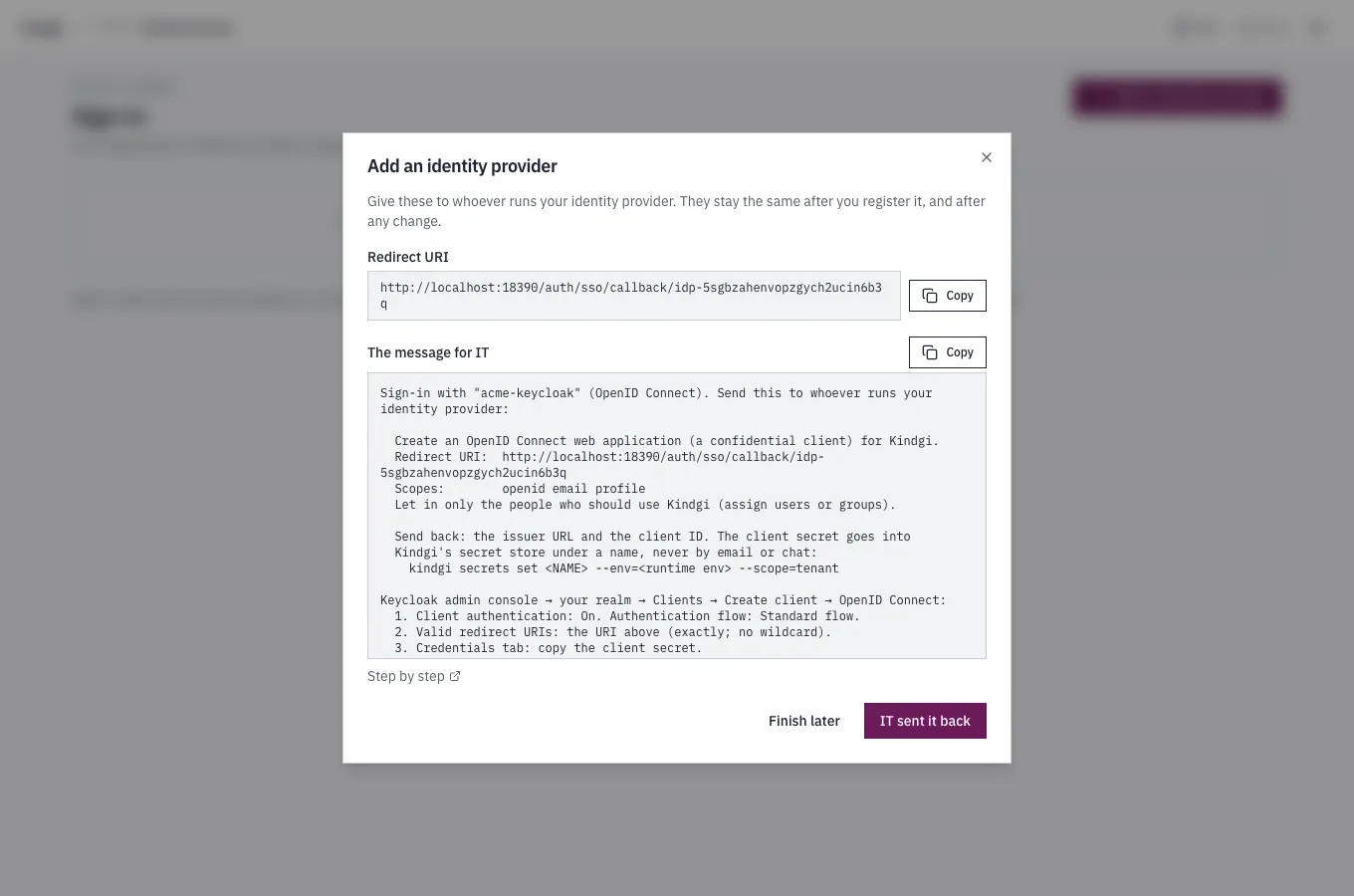
Sign-in with "acme-kc" (OpenID Connect). Send this to whoever runs your identity provider:
  Create an OpenID Connect web application (a confidential client) for Kindgi.  Redirect URI:  http://localhost:18096/auth/sso/callback/idp-ibhu3tdkkrjjjfllbjpu2uk3gm  Scopes:        openid email profile  Let in only the people who should use Kindgi (assign users or groups).
  Send back: the issuer URL and the client ID. The client secret goes into  Kindgi's secret store under a name, never by email or chat:    kindgi secrets set <NAME> --env=<runtime env> --scope=tenant
Keycloak admin console → your realm → Clients → Create client → OpenID Connect:  1. Client authentication: On. Authentication flow: Standard flow.  2. Valid redirect URIs: the URI above (exactly; no wildcard).  3. Credentials tab: copy the client secret.  4. Each person needs an email with "Email verified" on, or sign-in is refused.Issuer: https://<keycloak-host>/realms/<realm>
Step by step: https://docs.kindgi.com/v0.1/guides/sso/keycloak/
Then register it:  kindgi sso providers finish acme-kc --kind=oidc --issuer=<issuer> --client-id=<client-id> --client-secret-ref=<NAME> --domains=<your-domain>
These URLs stay the same after registering and after any `update`.
Send it to IT. The URLs are made from the runtime's KINDGI_PUBLIC_URL.
They stay the same after you register, after any update, and if you remove
the provider and register it again under the same id.
2. IT creates the app
Section titled “2. IT creates the app”IT follows your identity provider's page, with exactly the redirect URI that
start printed. IT then stores the client secret in Kindgi's secret store,
by name, so the secret never travels by email or chat:
npx --yes @kindgi/cli@0.1 secrets set ACME_KC_SECRET --env=production --scope=tenantACME_KC_SECRETis the secret's name. The provider's registration keeps only this name. The secret stays in the store.--envis the runtime's environment, itsKINDGI_ENV.--scope=tenantstores the secret for the whole workspace.
The command asks for the value twice, and doesn't show what you type. Then it prints what it stored:
Value:Re-enter to confirm:{  "name": "ACME_KC_SECRET",  "scope": {    "kind": "tenant",    "tenantId": "6c0bd33e-e941-439b-bd0c-c7e412db29fc"  },  "envName": "production",  "versionId": 1}
  Set ACME_KC_SECRET at tenant in production.
IT then sends back the issuer URL, the client ID and the secret's name.
3. Register what IT sent back
Section titled “3. Register what IT sent back”finish registers the provider, and offers it to people at your domains:
npx --yes @kindgi/cli@0.1 sso providers finish acme-kc --kind=oidc --issuer=http://127.0.0.1:18091/realms/acme \ --client-id=kindgi-live --client-secret-ref=ACME_KC_SECRET --domains=acme.test --name="Acme Keycloak"-
--kind=oidcsays the provider speaks OpenID Connect. A SAML provider takes--kind=samland its metadata instead (SAML). -
--issueris your identity provider's issuer URL. Here it's a Keycloak realm on the same machine. -
--client-idis the client ID IT sent back. -
--client-secret-refis the secret's name in the store.finishnever takes the secret itself. -
--domainsare the email domains this provider is offered for. Sign-in is email first, so people find their provider by their email's domain.finishrefuses to register without it:Error: --domains=<your-domain> is required: sign-in is email first, so people find this provider by their email's domain -
--nameis what the sign-in page's button says: "Sign in with Acme Keycloak".
Kindgi reads the issuer's endpoints from its discovery document when you
register. The registration that finish prints shows them:
{ "providerId": "acme-kc", "provider": { "providerId": "acme-kc", "kind": "oidc", "displayName": "Acme Keycloak", "domains": [ "acme.test" ], "signIn": { "redirectUri": "http://localhost:18096/auth/sso/callback/idp-ibhu3tdkkrjjjfllbjpu2uk3gm" }, "issuer": "http://127.0.0.1:18091/realms/acme", "clientId": "kindgi-live", "clientSecretRef": "ACME_KC_SECRET", … }}4. Add people, and try it
Section titled “4. Add people, and try it”Only people already added to your workspace get in, by the email the identity provider confirms. Add each person first, with their email (Add a person). Then get a link to try the sign-in:
npx --yes @kindgi/cli@0.1 sso providers test acme-kctest gives a link for someone at the provider's first domain.
--email=<someone@your-domain> makes it a link for that person instead.
Open this in a browser and sign in as a person who's been added to this tenant:  http://localhost:18096/auth/start/idp-ibhu3tdkkrjjjfllbjpu2uk3gm
Afterwards, the console shows who you are signed in as.
Open the link, and sign in as a person you've added. The console then shows who you're signed in as. From then on, people sign in from the console's sign-in page with their email (Sign in to the console). Someone who isn't added is refused, even when the identity provider lets them through.
Change it, list it, remove it
Section titled “Change it, list it, remove it”list shows your workspace's providers, and --table prints them as a
table:
npx --yes @kindgi/cli@0.1 sso providers list --tablePROVIDER KIND NAME DOMAINS──────── ──── ───────────── ─────────acme-kc oidc Acme Keycloak acme.testget <id>shows one provider, with its sign-in URLs.update <id>changes a field in place:--name,--domainsor a new--client-secret-ref, for example.--remove=<field>takes out an optional field, such asdisplayName. The URLs IT has don't change. Changing which identity provider is behind it signs its people out: a new issuer or client, or new SAML metadata or certificates. They then sign in again as usual. Renaming it or changing its domains doesn't sign anyone out.remove <id>takes it out of sign-in at once, and ends the sessions people opened through it. Its old links answer "That sign-in option is gone".
From the console
Section titled “From the console”A workspace admin does the same steps on the console's Sign-in page:
-
Add an identity provider asks which one, and proposes an id. You choose a preset, another OpenID Connect provider, or a SAML 2.0 one. Get the URLs then shows what to send IT: the redirect URI and the message for IT, with your provider's steps and a link to its page here. For SAML, it shows the service provider's URLs instead of the redirect URI. Finish later closes it. Adding the same id again gives the same URLs.
-
IT sent it back takes what IT returns: the issuer, the client ID and the client secret's name in your secrets, or the SAML metadata XML. Check looks the secret's name up, never its value. You then enter the domains and the button's name. Register adds the provider to sign-in.
-
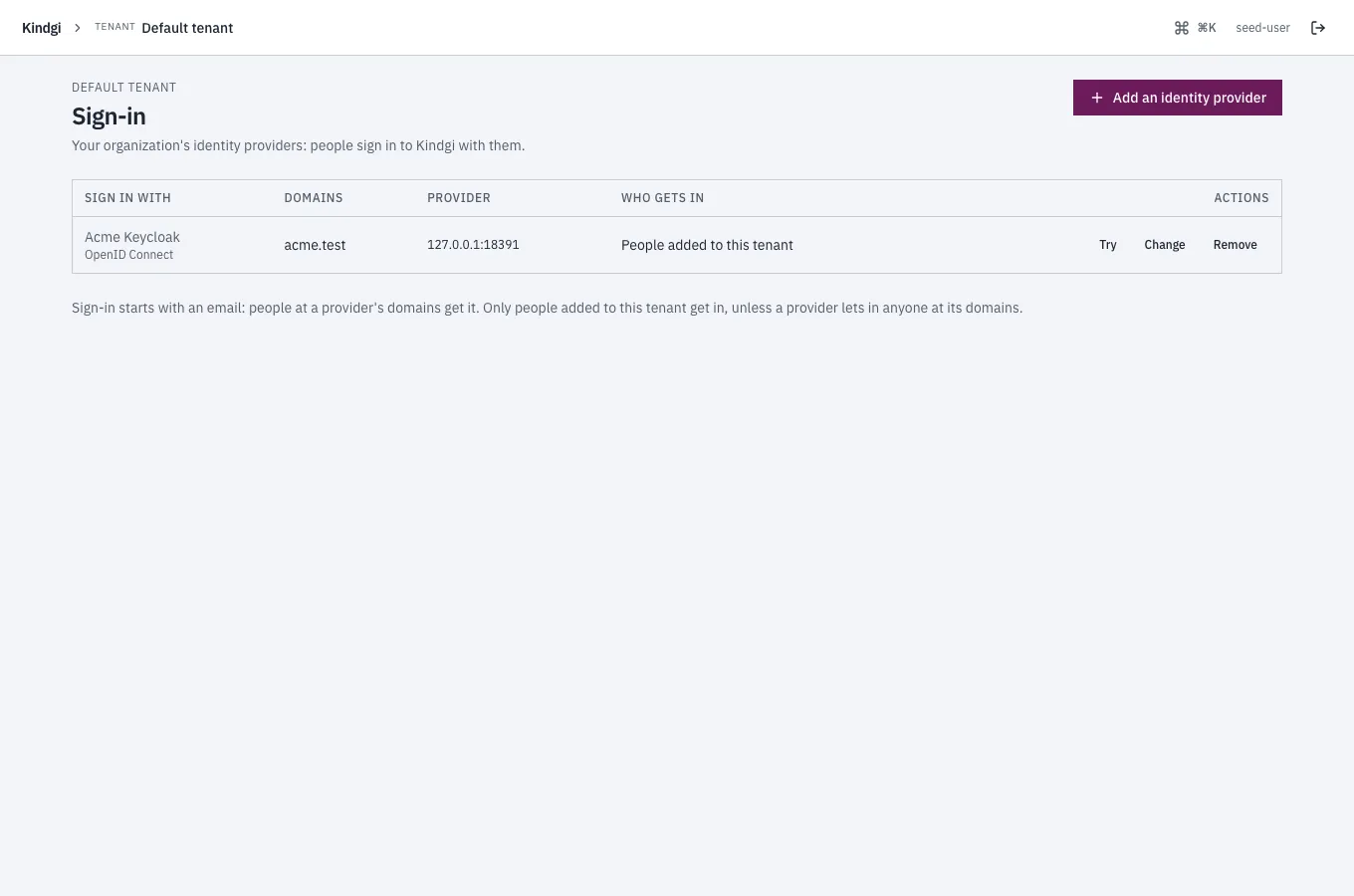
The list shows each provider with its domains, its host and who gets in. Try gives a sign-in link for someone at its domains. Change edits it in place, and warns you before a change that signs its people out. Remove takes it out of sign-in.
Whoever runs Kindgi can manage sign-in for every workspace themselves, with
KINDGI_AUTH_TENANT_PROVIDERS=off
(Turn on sign-in).
The Sign-in page then says so, and lists the providers with Try
only. A workspace admin's change from the CLI or the API is refused too.
Your identity provider
Section titled “Your identity provider”| Identity provider | Page | Checked live |
|---|---|---|
| Keycloak | Keycloak | yes, OpenID Connect and SAML (signed requests) |
| Google Workspace | yes, except the Workspace-only audience | |
| Microsoft Entra ID | Microsoft Entra ID | yes, single-tenant OpenID Connect |
| Okta | Okta | no: steps from Okta's docs |
| Another OpenID Connect provider | OpenID Connect | through Keycloak and Google |
| Another SAML provider | SAML | through Keycloak |
An identity provider on a private network
Section titled “An identity provider on a private network”Kindgi refuses an identity provider on a private network, such as an
internal Keycloak, unless the runtime's operator allows its origin with
KINDGI_AUTH_PRIVATE_IDP_ORIGINS:
Error [identity-provider-invalid]: http://127.0.0.1:18091/realms/acme is not a public HTTPS address (loopback): the deployment's operator can allow its origin with KINDGI_AUTH_PRIVATE_IDP_ORIGINSThis page's local Keycloak was allowed that way:
KINDGI_AUTH_PRIVATE_IDP_ORIGINS=http://127.0.0.1:18091.
The runtime checks each connection to a workspace's identity provider as it
checks the other hosts a workspace names
(What a tenant can't make the server do).
That covers its discovery document, and the token, keys and user info
requests at sign-in. An origin listed in KINDGI_AUTH_PRIVATE_IDP_ORIGINS
passes those checks.
- Sign in to the console: what your people see, and what each message there means.
- Sessions: how long a sign-in lasts, and signing out.
- Enterprise sign-in options: roles from your identity provider's groups, SCIM provisioning, and CLI sign-in.