

Turn on sign-in
When you finish this page, people sign in to your runtime's console with their workspace's own identity provider, with Google, Microsoft or GitHub, or with a link sent by email. This page is for whoever runs the runtime. What a person sees is in Sign in to the console. Connecting a workspace's own identity provider is in Set up SSO.
People sign in to the console with their email first. The sign-in page then offers the ways in that this deployment has. Whatever way someone signs in, the runtime lets in only people already added to a workspace, by an email their provider has proved. Nobody is created by signing in, and roles stay Kindgi's.
Before you start
Section titled “Before you start”- A runtime you deploy yourself, whose settings you can change (Self-host with Docker).
- The address people reach it at, over
https, such ashttps://kindgi.acme.com. - A secrets store for the runtime, set by
KINDGI_SECRETS_BACKEND. An identity provider's client secret and keys are references into it (Keep secrets in your own secret manager, or the default Postgres one). openssl, to make sign-in's own secret.- For
kindgicommands: Kindgi 0.1's CLI, which runs from any folder asnpx --yes @kindgi/cli@0.1(Install). Inside a pack project,pnpm exec kindgiruns the project's pinned CLI instead.
1. Turn it on
Section titled “1. Turn it on”Sign-in needs a secret of its own, which signs its sessions and sign-in state. Make 32 random bytes in a file only you can read:
openssl rand 32 > auth-secret && chmod 600 auth-secretopenssl rand 32prints 32 random bytes, and>writes them toauth-secret.chmod 600lets only the file's owner read and write it.
Mount the file where the runtime can read it, and set:
# kindgi.envKINDGI_AUTH_SECRET_PATH=/run/secrets/auth-secretKINDGI_PUBLIC_URL=https://kindgi.acme.comKINDGI_AUTH_SECRET_PATHis where the runtime reads the file. Where a file can't be mounted,KINDGI_AUTH_SECRETtakes the same 32 bytes, base64-encoded.KINDGI_PUBLIC_URLis where identity providers send people back. So it's the address in every redirect URI on this page.
Start the runtime. Its start log says sign-in is on, with /auth under
that address:
[sso] sign-in with identity providers is on: <KINDGI_PUBLIC_URL>/auth.
Without the public URL, the runtime doesn't start:
Sign-in with identity providers (KINDGI_AUTH_SECRET_PATH) needs KINDGI_PUBLIC_URL: the URL people reach the runtime at, where identity providers send them back.Without the secret, sign-in is off. The other settings on this page are then refused, naming the one to set first.
2. Choose the ways in
Section titled “2. Choose the ways in”Turn on the ways in your people need:
- Continue with Google, Microsoft or GitHub: the deployment's own apps.
- Sign-in links by email, sent through your SMTP service.
- Signing in with an API token, off by default.
Each workspace's own identity provider needs nothing more from you: its admins set it up (Set up SSO). Two settings decide how that works: Which domains find a workspace's identity provider, and Who manages a workspace's identity providers.
Signing in with an API token
Section titled “Signing in with an API token”Pasting an API token into the console's sign-in page is off by default,
except under kindgi dev. To keep it, set:
KINDGI_CONSOLE_TOKEN_SIGN_IN=onThe token signs in once and becomes a session: the browser never keeps the
token. Only a person's own full key signs in. A service account's key, or
one narrowed to a role or a project, is refused with
token-sign-in-not-allowed. That refusal is also in the access audit
(GET /v1/audit/authz), and so is token-sign-in-off while the setting is
off. API tokens work for the API, the CLI and the SDKs, whatever this
setting says.
The startup output says which ways in the console has. With only the token:
Console sign-in: an API token (KINDGI_CONSOLE_TOKEN_SIGN_IN)With neither, it warns, and so does kindgi doctor:
⚠ Console sign-in: nobody can sign in to the console. KINDGI_CONSOLE_TOKEN_SIGN_IN=on allows an API token; KINDGI_AUTH_SECRET_PATH turns on sign-in with identity providers.Which domains find a workspace's identity provider
Section titled “Which domains find a workspace's identity provider”A workspace's own identity provider is offered to an email only when the email's domain is verified for that workspace. Otherwise a workspace could claim another company's domain and catch its people.
-
A runtime that serves one workspace routes that workspace's domains with nothing to set.
-
A runtime that serves several routes a domain only once you list it:
Terminal window KINDGI_AUTH_VERIFIED_DOMAINS=acme.com:acme,acme.co.uk:acmeEach entry is a domain and the workspace it belongs to, by the workspace's id or its slug. The runtime checks the list when it starts. An entry it can't read, or a domain listed twice, stops it, naming the entry. An entry for a workspace it doesn't serve (no workspace has that id or slug, it was purged, or its setup hasn't finished) doesn't: the runtime warns, naming the domain and the workspace, and treats that domain as one not listed until it next starts with the workspace set up.
Each replica reads its own list, as does any other runtime on the same database: give them all the same one.
The startup output lists what routes:
Sign-in domains: the tenant's own, and acme-live.example (KINDGI_AUTH_VERIFIED_DOMAINS)A domain that isn't verified can still sign in through its provider's own
link: kindgi sso providers test prints it.
Who manages a workspace's identity providers
Section titled “Who manages a workspace's identity providers”By default, each workspace's admins add, change and remove its own identity
providers, from the console's Sign-in page or kindgi sso providers
(Set up SSO). The startup output says so:
Identity providers: each tenant's admins set up their own (KINDGI_AUTH_TENANT_PROVIDERS=off keeps that to this deployment's own token)To manage sign-in yourself for every workspace, from your deployment's own scripts for example, turn that off:
# kindgi.envKINDGI_AUTH_TENANT_PROVIDERS=off Identity providers: the operator's (KINDGI_AUTH_TENANT_PROVIDERS=off): only this deployment's own token adds, changes or removes them; the ones there keep signing people in-
Only the deployment's own token (
KINDGI_API_TOKEN) can then add, change or remove a provider. A workspace admin's change is refused with403 identity-providers-operator-managed:This deployment's operator manages sign-in (KINDGI_AUTH_TENANT_PROVIDERS=off): identity providers can't be added, changed or removed here, except with the deployment's own token (KINDGI_API_TOKEN). -
The providers already there keep signing people in, and anyone may still read them: the list says
changes: operator. -
The console's Sign-in page says who manages it, and lists the providers with Try only:
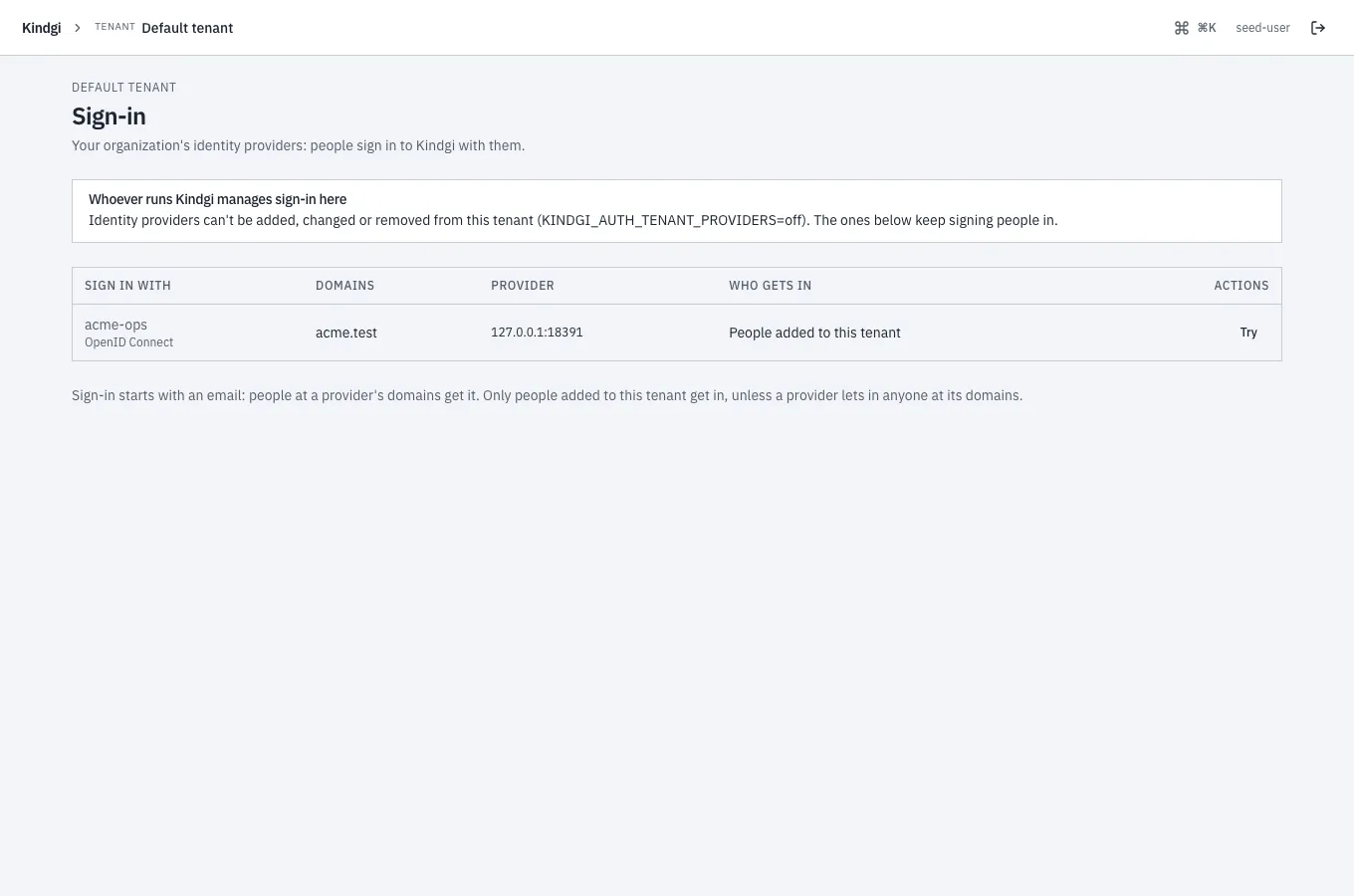
on is the default. Like the other settings here, it needs sign-in on.
Continue with Google, Microsoft or GitHub
Section titled “Continue with Google, Microsoft or GitHub”The deployment's own apps let people sign in with their Google, Microsoft or GitHub account. Each needs an app you register with that provider, with this redirect URI:
<KINDGI_PUBLIC_URL>/auth/kindgi/social/callback/<google | microsoft | github>The runtime logs the exact URI for each one it turns on, when it starts.
Store each app's secret as a file with the mode 0600, and give the runtime
its path:
KINDGI_AUTH_GOOGLE_CLIENT_ID=…KINDGI_AUTH_GOOGLE_CLIENT_SECRET_PATH=/run/secrets/google-client-secretKINDGI_AUTH_GOOGLE_CLIENT_IDis the app's client ID.KINDGI_AUTH_GOOGLE_CLIENT_SECRET_PATHis where the runtime reads its secret.
The same pair exists for MICROSOFT and GITHUB. A …_CLIENT_SECRET
variable takes the value itself, where a file can't be mounted. The startup
output names the apps it has:
Continue with: Google, Microsoft, GitHub (the deployment's own apps)In the Google Cloud console, under APIs & Services → Credentials, create
an OAuth client of type Web application. Under Authorized redirect
URIs, choose Add URI, enter the redirect URI ending in google, then
Save. A change can take a few minutes to apply. The app's consent screen
sets who may sign in with it
(Google: Manage App Audience).
Microsoft
Section titled “Microsoft”In the Microsoft Entra admin center, Applications → App registrations → New registration:
- Supported account types: accounts in any organizational directory,
and personal Microsoft accounts if you want them. Not "this
organizational directory only": these sign-ins go through Microsoft's
commonendpoint, which a single-directory app can't use. - Redirect URI: platform Web, the redirect URI ending in
microsoft. - Overview → Application (client) ID is the client id.
- Token configuration → Add optional claim, token type ID:
emailandxms_edov.xms_edovsays the email's domain is verified by the person's own directory. Without it, every Microsoft sign-in is refused. - Certificates & secrets → New client secret: copy the Value column, not "Secret ID". It's shown once.
This app is for Continue with Microsoft. A workspace that uses Microsoft Entra ID as its own identity provider sets up a different, single-directory app (Microsoft Entra ID).
GitHub
Section titled “GitHub”Settings → Developer settings → OAuth Apps → New OAuth App, with the
public URL as its homepage, and the redirect URI ending in github as its
callback. GitHub sign-ins use the account's primary email, which must be
verified.
Who gets in
Section titled “Who gets in”The buttons a person sees depend only on their email's domain, and grant nothing. Access is decided after the provider signs them in:
- The provider proves the email: Google's verified email, with its ID
token checked, a verified GitHub email, or Microsoft's
xms_edov. - Google and Microsoft speak for a work email only through the company's
own accounts. Google: Gmail, or a Google Workspace account of that
domain. Microsoft: a work account, or a personal account only on
outlook.com, hotmail.com, live.com or msn.com. A personal account made on
a work address is refused (
email-not-managed). - A workspace with its own identity provider signs its people in with
it. On a domain verified to such a workspace, sign-in offers and accepts
only that provider and the Google or Microsoft accounts the domain
manages. GitHub and the emailed link are refused, and the refusal
(
identity-provider-required) is audited. Guests on personal domains, such as gmail.com, keep every way in. - That email belongs to someone already added to a workspace this
runtime serves, and not removed. In several workspaces, they choose one.
In none, they're refused with
not-invited. - The first sign-in links the provider account to the person. A
different account with the same email is refused afterwards, with
account-mismatch. So an address that later moves to someone else can't take the person over.
No provider token is kept, and the session is stored by its hash.
When a sign-in doesn't complete
Section titled “When a sign-in doesn't complete”The person sees "Sign-in didn't complete". When the email can't be proved, they see the message for that instead. The runtime's log says why, and at which step, without logging a token or a code:
[sso] "Continue with Microsoft" didn't complete, <step>: <reason>The steps are "at the provider", "exchanging the code", "checking the ID token", "reading the account" and "proving the email". For Microsoft, the reason names the optional claim to add.
Sign-in links by email
Section titled “Sign-in links by email”A person can ask for a link instead. It works once, for ten minutes, and signs them in to the console. The runtime sends it through any SMTP service:
KINDGI_AUTH_EMAIL_SMTP_URL_PATH=/run/secrets/smtp-url # smtps://<user>:<password>@<host>:465KINDGI_AUTH_EMAIL_FROM=Kindgi <sign-in@acme.com>KINDGI_AUTH_EMAIL_SMTP_URL_PATHis a file holding your SMTP service's URL, with its user and password.KINDGI_AUTH_EMAIL_FROMis the sender.
The From address must be on a domain your SMTP service has authenticated with SPF and DKIM, or the mail lands in spam. Use a key that may only send mail.
From a runtime at http://localhost:18096, the email read:
From: Kindgi <sign-in@acme-live.example>Subject: Your sign-in link for Kindgi
Sign in to Kindgi with this link:
http://localhost:18096/console/login?sign-in-link=…
It works once and expires in 10 minutes.If you didn't ask to sign in, ignore this email: nobody can sign in without the link.The page always answers the same, for any email, so it can't be used to find out who has an account. The limits:
- An address gets at most one link a minute, and three per 15 minutes.
- A backstop of 20 a day per address and client network
(
KINDGI_AUTH_EMAIL_LINK_DAILY_CAP). - Each client may ask 3 times a minute.
The browser that already got a link for an address isn't held by the 15 minutes, so someone else's requests can't keep that person out.
Past 200 links in an hour across the whole deployment, the runtime logs a warning, at most one every 10 minutes. Links still go out: it's an alert, not a limit:
[sso] emailed link: more than 200 links this hour across the deployment: check the sign-in-link-sent audit events for abuse, and turn on Turnstile if it's offA link opened in the browser asks the person to continue before it signs them in, so a mail scanner that opens it doesn't use it up.
A captcha in front: Cloudflare Turnstile. Add a widget (mode Managed) whose hostname is the console's, and give the runtime its keys:
KINDGI_AUTH_TURNSTILE_SITE_KEY=…KINDGI_AUTH_TURNSTILE_SECRET_PATH=/run/secrets/turnstile-secretA runtime that serves several workspaces doesn't start without it. With one workspace, it's optional. The startup output says how links go out:
Emailed sign-in link: on, from Kindgi <sign-in@acme-live.example> (Turnstile; 3 per 15 minutes and at most 20 a day per address)With one of Cloudflare's test secrets, every request passes, and the start log says so:
[sso] Turnstile uses one of Cloudflare's test secrets: every request passes. Use your widget's own secret outside a test.Without Turnstile, on a console others can reach, the startup output
recommends it. Others can reach it when KINDGI_PUBLIC_URL isn't on this
machine:
Emailed sign-in link: on, from Kindgi <sign-in@acme-live.example> (no captcha: KINDGI_AUTH_TURNSTILE_SECRET adds one; 3 per 15 minutes and at most 20 a day per address) ⚠ Emailed sign-in link without a captcha on a console others can reach: Turnstile is recommended (KINDGI_AUTH_TURNSTILE_SECRET, KINDGI_AUTH_TURNSTILE_SITE_KEY).A second factor
Section titled “A second factor”A person can add a second factor to signing in (runtime 0.1.9 or later): the codes an authenticator app shows (TOTP, as in Google Authenticator, 1Password or Authy), and 10 recovery codes for when the phone is lost. They set it up in the console, which shows the key as a QR code, once. From then on, signing in by the emailed link, Google, Microsoft or GitHub asks for a code after the first step, and no session is made until it's given. Each recovery code works once; where the deployment sends email, they're told when one is used to sign in.
A tenant admin can require one for the whole workspace:
npx --yes @kindgi/cli@0.1 sign-in settings --require-second-factor=on- Someone without one sets one up at their next sign-in.
- A session made without one ends at its next request.
- Signing in to the console with an API token is refused
(
second-factor-required), since a token can't give a second factor. - Signing in through the workspace's own identity provider is exempt: it owns the second factor there.
- A site's people, signed in through site sign-in, are exempt too: the site owns their second factor.
- API keys aren't covered. Keep them to service accounts, and rotate them.
Turning it on from a session made without your own second factor is refused
(second-factor-enroll-first): it would end your session. Set yours up and
sign in again with it first.
After 5 wrong codes in one sign-in, that sign-in ends and the person starts
again from the first step. Ten wrong codes in 15 minutes lock their second
factor for the rest of that time (second-factor-locked). For a lost phone, a tenant admin removes
theirs, and they're told by email where the deployment sends it:
npx --yes @kindgi/cli@0.1 people reset-second-factor <user-id>An admin's own isn't removed this way: they take it off on My access, with a code from it, as anyone does.
The keys are kept encrypted under the sign-in secret (KINDGI_AUTH_SECRET).
When you rotate it, set the old one as
KINDGI_AUTH_PREVIOUS_SECRET_PATH
(or KINDGI_AUTH_PREVIOUS_SECRET): each key moves to the new secret at its
person's next code.
kindgi sign-in settings counts the keys still on the previous secret; keep
it until that is 0. A key that opens under neither secret can't be used
(second-factor-unusable): its person signs in with a recovery code, or an
admin removes it.
Terms and privacy links
Section titled “Terms and privacy links”The console's sign-in page can link your terms and privacy policy (runtime 0.1.9 or later):
# kindgi.envKINDGI_AUTH_TERMS_URL=https://www.acme-live.example/termsKINDGI_AUTH_PRIVACY_URL=https://www.acme-live.example/privacySet either one, or both. Each is an absolute https URL, with no username
or password in it: with anything else, the runtime doesn't start. Unset,
the page links neither. The links
show beside kindgi.com and Docs, or under the form on a narrow screen.
Behind a load balancer
Section titled “Behind a load balancer”Sign-in's rate limits and records use the client's address. Behind a load
balancer or an ingress, set KINDGI_TRUSTED_PROXIES, or every client counts
as the proxy
(Behind a load balancer or ingress).
Sessions
Section titled “Sessions”A session lasts 12 hours (KINDGI_SESSION_TTL_MS), and ends after an hour
without use (KINDGI_SESSION_IDLE_TIMEOUT_MS).
Sessions has the rest.
- Set up SSO: a workspace connects its own identity provider.
- People, API keys and service accounts: add the people who sign in.
- Sign in to the console: what your people see.